
Veo 3.1 vs Gemini Omni Video: Which Should You Use?
Compare Veo 3.1 and Gemini Omni Video for cinematic generation, conversational editing, inputs, quality, and production workflows.
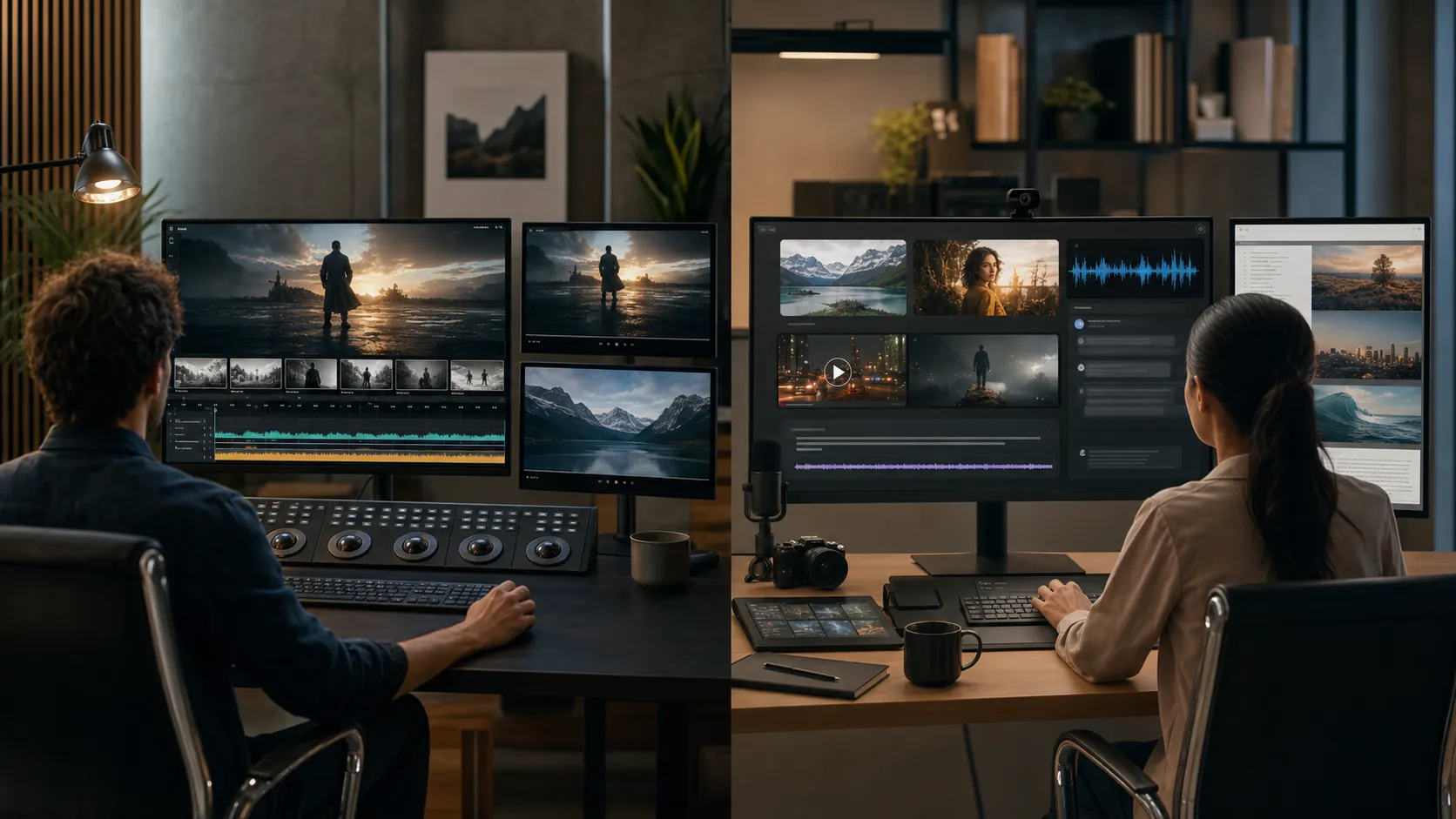
Veo 3.1 vs Gemini Omni Video is one of the most useful AI video comparisons in 2026 because the two models are no longer trying to solve exactly the same job. Veo 3.1 is built for cinematic video generation with native audio, frame control, and higher-resolution production options. Gemini Omni Video, the name many creators use for Google's Gemini Omni Flash video model, is built around multi-input reasoning and conversational video editing.
If your goal is to create polished Veo-style clips, start with the Veo 3.1 1080p generator. If you want the Gemini side, open the Gemini Omni Video Generator for prompt-led or image-guided clips. For premium Veo output, compare that with the Veo 3.1 4K generator.
Before the comparison, a naming note: Google documentation refers to the new Gemini video model as Gemini Omni Flash. In this article, "Gemini Omni Video" means the Gemini Omni Flash video generation and editing workflow described in Google's public docs as of July 2026.
Quick Answer
Use Veo 3.1 when you need a clean path from prompt or reference image to a finished clip. It is the better fit for native audio, frame direction, video extension, and 1080p or 4K output workflows.
Use Gemini Omni Video when your project depends on iterative editing or mixed inputs. Google's Gemini API overview says Gemini Omni Flash supports video generation and conversational editing across text, image, audio, and video inputs. For a focused workflow, try the Gemini Omni Video Generator with prompt, visual reference, duration, aspect ratio, and resolution controls.
In plain English: Veo 3.1 is a production generator. Gemini Omni is a conversational video editor and multimodal generator. The best choice depends on whether the brief is asking for a final cinematic shot or a flexible editing conversation.
Veo 3.1 vs Gemini Omni Video at a Glance
| Category | Veo 3.1 | Gemini Omni Video |
|---|---|---|
| Best for | Cinematic prompt-to-video and reference-guided generation | Conversational video creation and editing from mixed inputs |
| Official model name | Veo 3.1 | Gemini Omni Flash |
| Main workflow | Generate videos from text or images, then use controls like resolution, aspect ratio, frame guidance, and extension | Generate or edit videos through the Interactions API across multiple turns |
| Inputs | Text and image in the Gemini API Veo workflow | Text, image, audio, and video inputs in Gemini Omni workflows |
| Output direction | 8-second videos with native audio, with 720p, 1080p, and 4K options documented by Google | 3-10 second 720p video output documented for the preview model |
| Editing style | Structured controls such as first/last frame and extension | Natural language, multi-turn editing that builds on prior turns |
| Best user | Creator, marketer, or team producing a polished clip | Creator or developer experimenting with references, edits, and iterative changes |
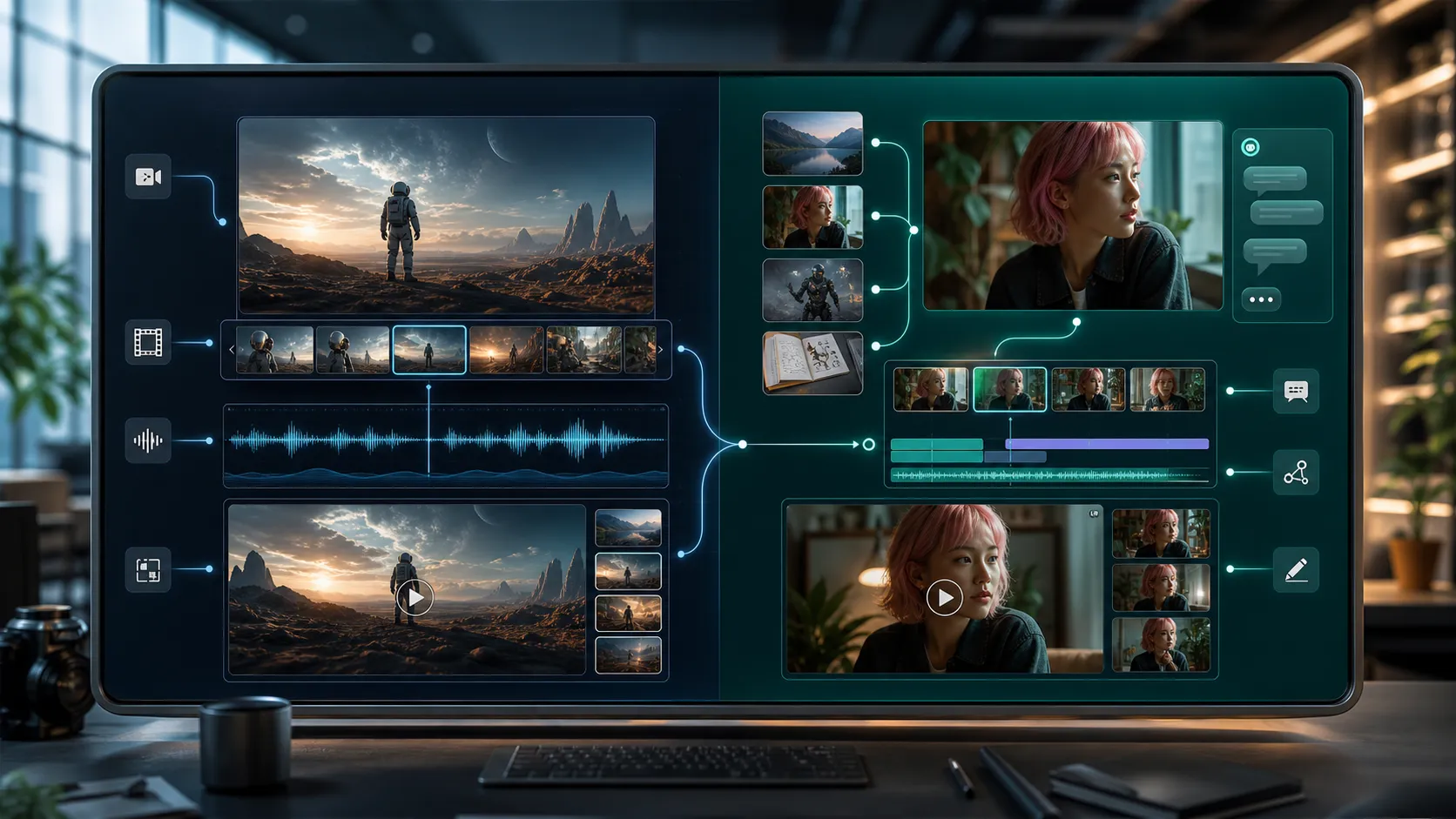
What Veo 3.1 Does Better
Veo 3.1 is strongest when the job starts with a creative brief and ends with a usable video asset. Google's Veo documentation describes Veo 3.1 as a model for generating 8-second videos with natively generated audio, and it documents 720p, 1080p, and 4K output options.
Cinematic Generation
Veo 3.1 is a better first choice when the desired output is a standalone cinematic shot: a product reveal, a campaign visual, a landing page hero loop, or a short narrative moment. The prompt can describe subject, camera movement, lighting, mood, style, and sound.
Native Audio for Finished Clips
Audio matters more than many AI video comparisons admit. A clip can look beautiful and still feel unfinished if the ambience, dialogue, or sound effects do not match the scene. With Veo 3.1, those cues belong in the generation prompt rather than in a separate post-production step.
Frame and Extension Control
Veo 3.1 also has an advantage when the shot needs a planned beginning, ending, or continuation. Google's docs describe first-and-last-frame generation, reference-image direction, and video extension. First-and-last-frame control helps when a transition must land in a specific composition. Extension helps when a generated clip has the right motion but needs more time.
1080p and 4K Workflows
Resolution matters when the output will be cropped, repurposed, embedded on a landing page, or shown in a premium campaign. Use the Veo 3.1 1080p generator for most polished web and social assets. Use the Veo 3.1 4K generator when you need sharper source material or more room for editing.
What Gemini Omni Video Does Better
Gemini Omni Video is not just "another Veo." Google's Gemini Omni announcement frames it as a model where Gemini's reasoning meets creation, starting with video. The public Gemini API docs position Gemini Omni Flash as a fast, conversational model for video generation and editing. In Veo3Flow, the dedicated Gemini Omni page gives that search intent a better destination.
Many creative jobs are not a straight line from one prompt to one output. Sometimes you need to start with a reference image, add a video clip, change the background, keep the subject, and keep refining.
Conversational Editing
The biggest Gemini Omni advantage is natural language editing. Instead of regenerating a new video from a rewritten prompt, you can ask for a change in the context of a prior interaction. A practical edit might be:
Keep the same camera angle and character, but change the background to a rainy neon street and make the lighting more dramatic.
That style of instruction is closer to working with an editor than filling out a fixed generator form. It is useful when the next change depends on what the previous output got right.
Multi-Input Reasoning
Gemini Omni is also designed around mixed inputs. Google's docs describe support for text, images, audio, and video inputs. That makes it relevant when your source material is messy: a product photo, rough video, voice note, style image, and short brief.
Fast Preview Editing
The preview model card for Gemini Omni Flash lists 3-10 second 720p output. That is useful for fast ideation, but it also means teams should be thoughtful about final delivery. If the goal is quick experimentation, 720p preview output may be enough. If the goal is a sharper final asset, Veo 3.1 may be the better production endpoint.
A Practical Hybrid Workflow
The smartest model choice is often not either-or. Use Gemini Omni Video for exploration when the source material is mixed or the edit direction is still changing. Use Veo 3.1 when you are ready for a controlled, higher-quality clip.
Start by writing a simple creative brief. Define the subject, platform, duration target, tone, and what must stay consistent. If the concept is vague, explore variations first.
Once the concept is clear, prepare the Veo 3.1 production prompt. Include the subject, setting, action, camera movement, lighting, mood, style, audio, and any reference-image rules. If the final clip needs a specific format, choose the resolution and aspect ratio before generation.
If you need help shaping the prompt, use the Veo 3 prompt generator to turn a rough idea into a stronger production brief. The Veo 3 AI Video Generator can also help you test ideas before a controlled Veo 3.1 run.
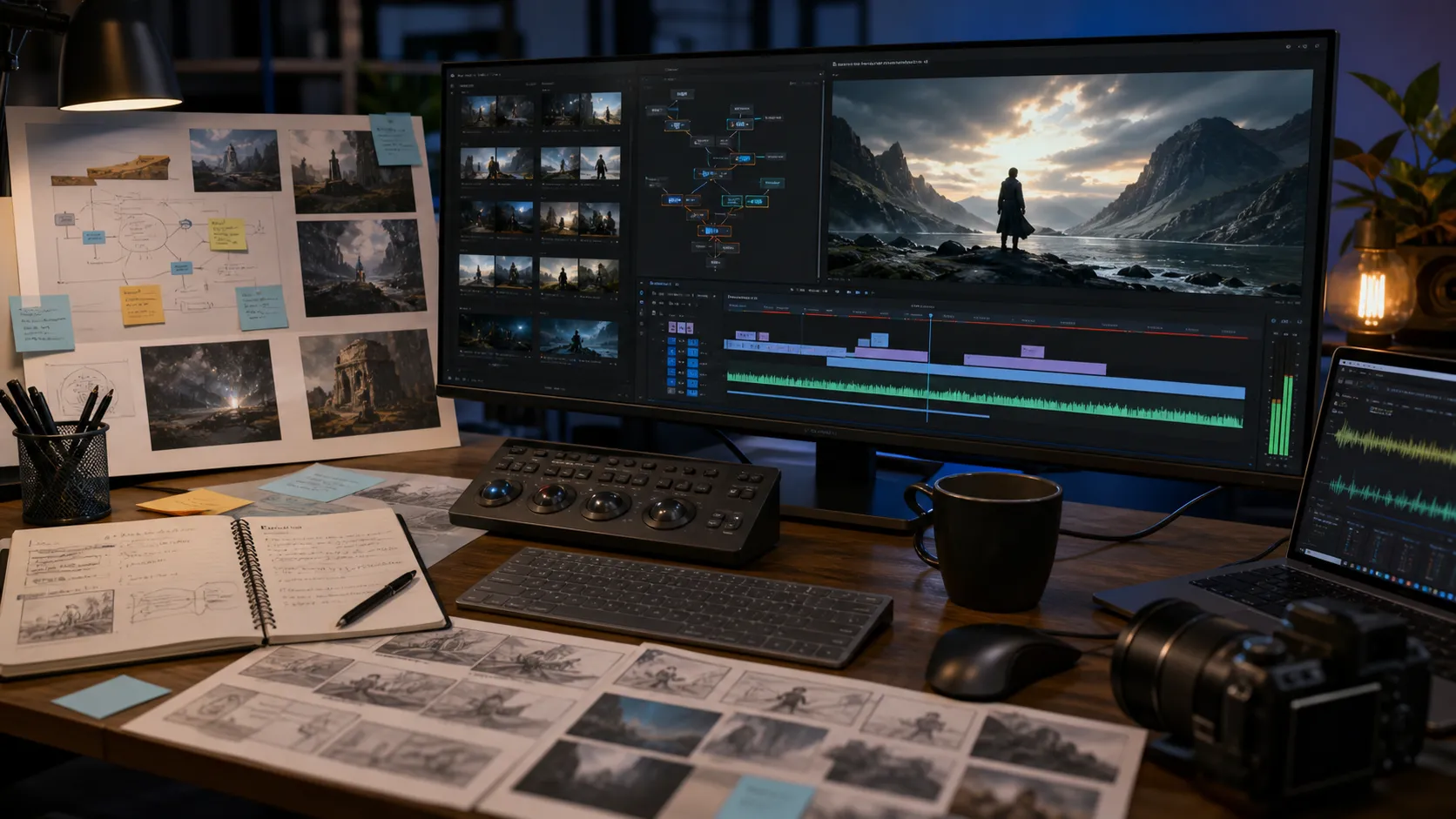
Prompting Differences That Matter
A Veo 3.1 prompt should be production-minded. It should tell the model what to generate and what to preserve.
Create a cinematic 8-second product video of a matte black smart speaker on a walnut desk at sunrise. Slow dolly-in camera movement, warm rim light, subtle dust in the air, premium commercial style. Add soft room ambience and a quiet startup chime. Preserve the speaker shape and minimal design from the reference image.
A Gemini Omni prompt can be more conversational because it may follow an existing generation or uploaded clip:
Keep the speaker and camera move from the previous video, but change the room into a modern apartment at night. Add blue city light through the window and make the startup chime feel softer.
The Veo prompt is better for creating a defined shot. The Gemini Omni prompt is better for revising an existing direction.
Common Mistakes
The first mistake is treating Gemini Omni Video as a direct replacement for Veo 3.1. Veo 3.1 still matters when you need extension, frame control, or higher-resolution production paths.
The second mistake is using 4K too early. Generate the concept first, then move the best direction into a higher-resolution workflow. The third mistake is forgetting audio. Prompts should include ambient sound, dialogue, music mood, or sound effects when those details affect the final clip.
Final Recommendation
Choose Veo 3.1 when your project needs a polished result, native audio, reference-guided generation, frame control, extension, or 1080p and 4K output. It is safer for assets.
Choose Gemini Omni Video when your project needs flexible multimodal input, conversational editing, and fast iteration. It is the better choice while the output is still being shaped, and the Gemini Omni workflow is the right Veo3Flow landing page.
For many teams, the best workflow is simple: explore with Gemini Omni-style iteration, then produce with Veo 3.1. When you are ready for the production pass, open the Veo 3.1 1080p generator or move straight to the Veo 3.1 4K generator for high-resolution output.
Sources Checked
This article was drafted against Google's public documentation available on July 2, 2026, including the Gemini API video generation overview, the Gemini Omni Flash model card, the Veo 3.1 Gemini API guide, and Google's Gemini Omni announcement.
FAQ
Is Gemini Omni Video the same as Veo 3.1?
No. Veo 3.1 is Google's video generation model for cinematic clips with native audio and production controls. Gemini Omni Flash is for multimodal video generation and conversational editing.
Is Gemini Omni better than Veo 3.1?
It depends on the workflow. Gemini Omni is better for multi-input reasoning and iterative editing. Veo 3.1 is better for controlled production clips with frame guidance, extension, or higher-resolution output.
Does Veo 3.1 support 4K?
Google's Gemini API documentation lists 720p, 1080p, and 4K options for Veo 3.1, with limits depending on model and task. For a high-resolution workflow, use the Veo 3.1 4K generator.
Does Gemini Omni Video support video input?
Google's Gemini Omni Flash model card lists video input for editing, with documented limits for the preview model. Availability can change by region, API surface, and model version.
What is the easiest workflow for creators?
Use Gemini Omni-style editing while exploring. Use Veo 3.1 when the concept is ready for a polished pass with clearer camera, audio, reference, and resolution instructions.
Try It Yourself
Ready to generate your own AI video? Try it now and bring your prompts to life.
Veo 3 AI Video Generator