
Veo 3 vs Veo 3.1: What Changed and Which Should You Use?
Compare Veo 3 and Veo 3.1 for video quality, audio, control, resolution, workflows, and when to use each model.
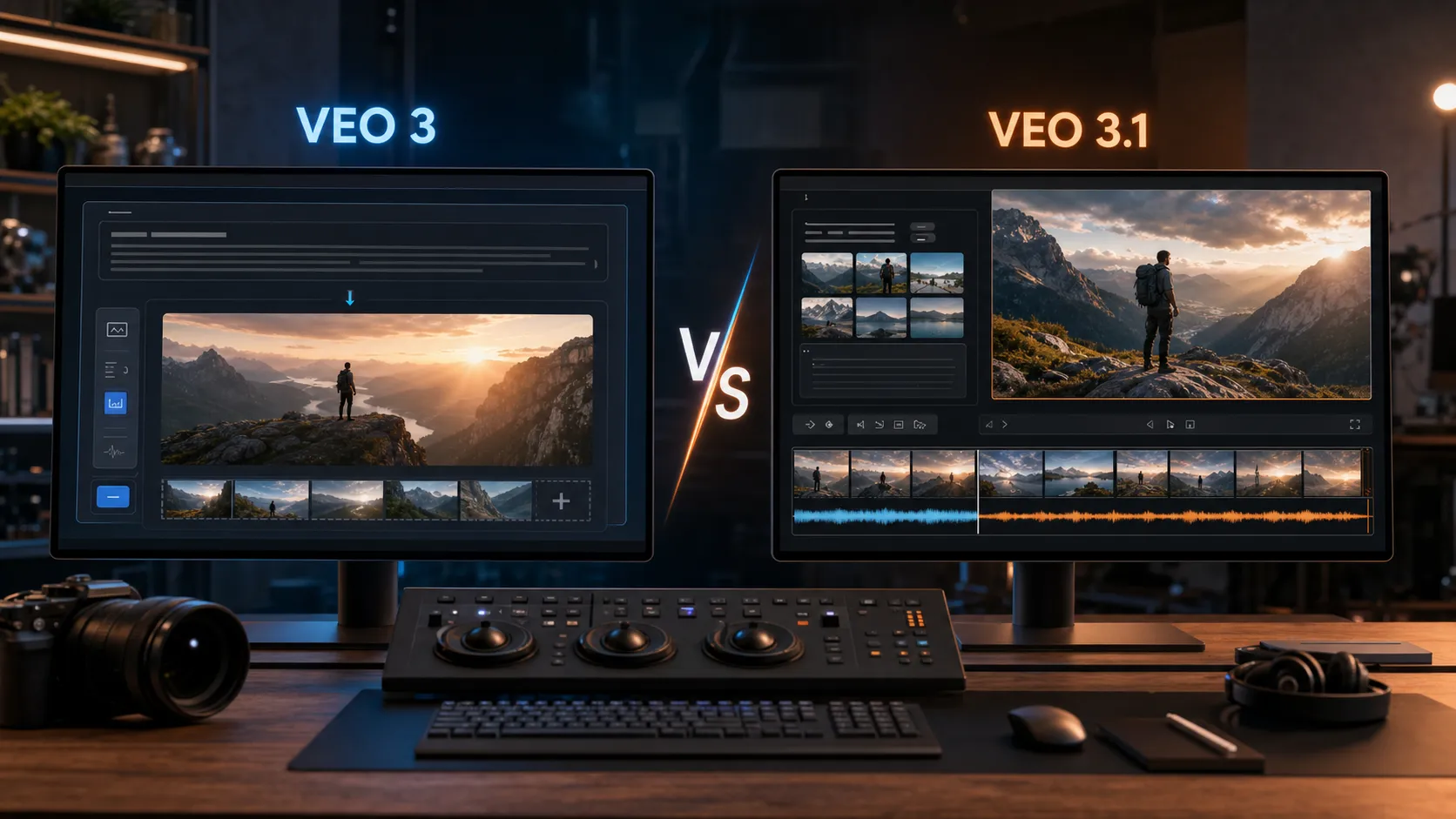
Veo 3 vs Veo 3.1 is not just a version-number question. For creators, marketers, product teams, and developers, the practical question is simpler: which model gives you the most reliable path from a prompt or reference image to a usable video?
If you want to start generating right away, try the Veo 3 AI Video Generator for a familiar text-to-video and image-to-video workflow. If your project needs higher-resolution Veo 3.1 output, compare that with the Veo 3.1 1080p generator or the Veo 3.1 4K generator.
This comparison focuses on practical production decisions: visual quality, native audio, prompt adherence, reference-image control, resolution, and workflow fit.
Quick Answer
Veo 3 is still a strong choice when you want a straightforward AI video generation workflow for everyday social videos, ads, product concepts, and fast creative iteration.
Veo 3.1 is the better choice when the brief depends on more control. Google's Gemini API documentation describes Veo 3.1 as supporting native audio, 720p, 1080p, and 4K generation, plus controls such as portrait output, video extension, first-and-last-frame generation, and reference-image direction. Google's announcement also highlights richer native audio, stronger image-to-video quality, better prompt adherence, and more narrative control.
In plain English: use Veo 3 when the job is fast, direct, and familiar. Use Veo 3.1 when the shot needs more structure, cleaner audiovisual direction, stronger reference guidance, or a premium resolution target.
Veo 3 vs Veo 3.1 at a Glance
| Category | Veo 3 | Veo 3.1 |
|---|---|---|
| Best for | Fast AI video creation, general-purpose clips, prompt-driven video ideas | Higher-control video generation, reference-guided shots, 1080p and 4K workflows |
| Native audio | Supported in Veo 3 family workflows | Supported, with Google highlighting richer audio and synchronized sound effects |
| Inputs | Text-to-video and image-to-video | Text-to-video, image-to-video, and expanded controls such as reference images and first/last frames |
| Resolution direction | Commonly used for HD and Ultra HD generator workflows | Official Gemini API docs list 720p, 1080p, and 4K options, with limits depending on mode |
| Control | Prompt and style direction | More narrative control, reference-image direction, video extension, and frame-specific generation |
| Best user | Creator who wants reliable generation with fewer setup choices | Creator or team that wants more predictable shot design and higher-end output |
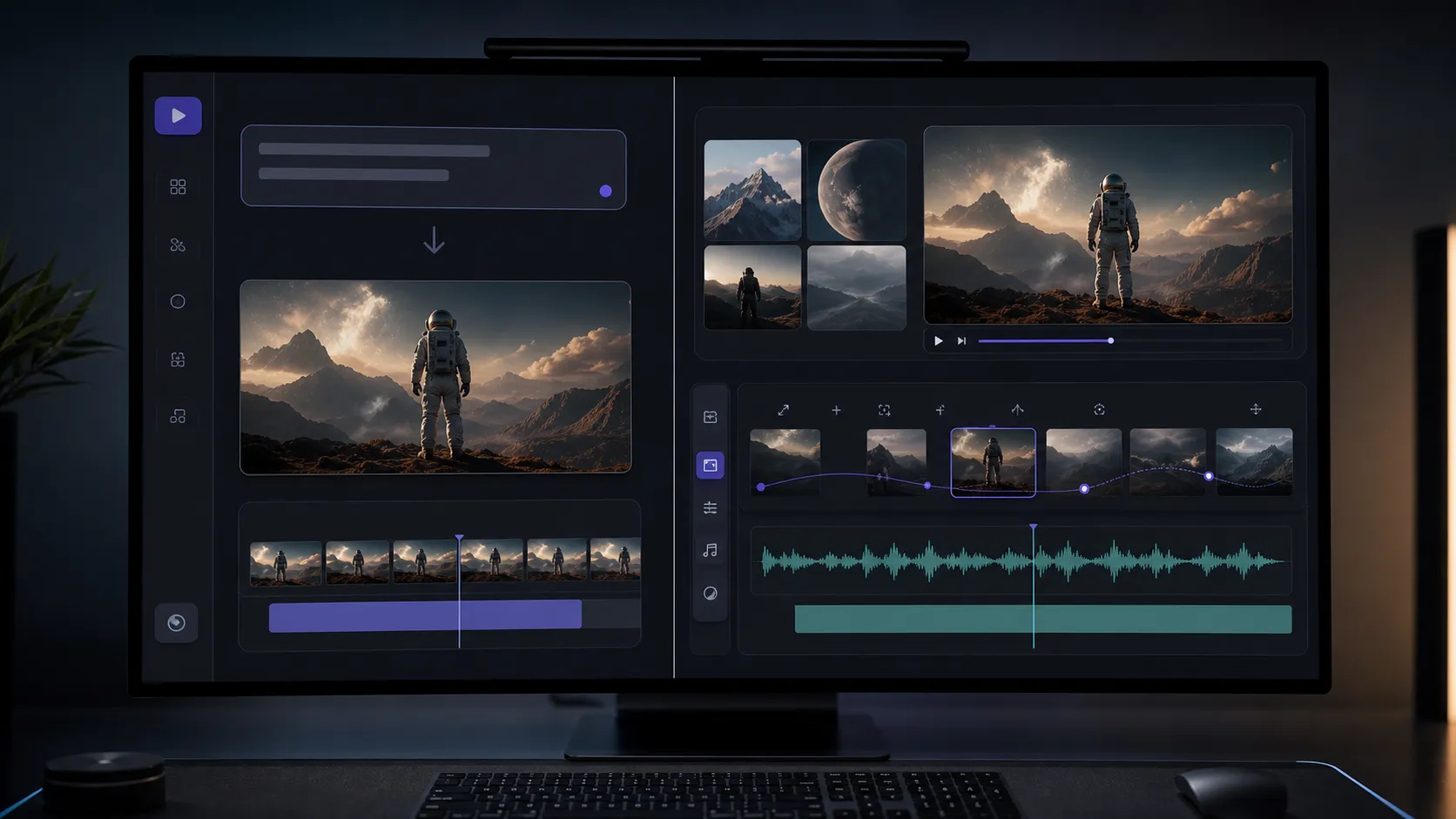
What Changed in Veo 3.1?
The biggest Veo 3.1 changes are about control, not only raw quality. Production teams usually feel the upgrade through fewer failed takes, clearer scene direction, and more ways to guide the output before generation starts.
Richer Native Audio
Veo 3 already made native audio a core part of modern AI video generation. Veo 3.1 pushes that idea further. Google's developer announcement says the updated models generate richer native audio, including natural conversations and synchronized sound effects.
That matters because audio is often what makes an AI video feel finished. For short ads, product demos, and story-driven clips, Veo 3.1 is the better fit when audio is part of the creative brief instead of an afterthought.
Better Image-to-Video Direction
Image-to-video is where many users notice model differences first. With Veo 3, a reference image can help establish the subject, style, or scene. With Veo 3.1, Google emphasizes improved image-to-video output, stronger prompt adherence, and better audiovisual quality when turning images into videos.
For marketers, this is useful when you already have a product photo, character concept, style frame, or campaign visual. You can give the model a clearer starting point and ask it to animate within that visual direction.
More Narrative Control
Veo 3.1 introduces controls that are especially useful for storyboarding and previsualization. Google's Gemini API docs list features such as video extension, first-and-last-frame generation, and image-based direction with multiple reference images.
These controls help with a common AI video problem: the model may create a beautiful shot, but not the exact shot the project needs. First-and-last-frame generation can guide a transition. Reference images can keep the subject or style grounded. Extension can continue an existing generated clip when the scene needs more time to breathe.
1080p and 4K Workflow Options
Resolution should not be the only reason to choose a model, but it matters for final use. A rough concept may only need a quick HD draft. A hero ad, landing page visual, or premium social campaign may need sharper output.
For Veo 3.1, Google documents 720p, 1080p, and 4K generation options in the Gemini API, with limitations depending on model tier and task type. In Veo3Flow, you can use the Veo 3.1 1080p generator for high-quality HD workflows or move to the Veo 3.1 4K generator when the project needs a higher-resolution result.
When Veo 3 Is Still the Better Choice
The newer model is not automatically the right model for every job. Veo 3 remains useful when the creative direction is simple and speed matters more than advanced control.
Choose Veo 3 when you are:
- Testing a batch of short creative ideas.
- Making first drafts for social posts, ads, or landing page concepts.
- Exploring prompt angles before committing to a high-resolution generation.
- Producing clips where the exact first and last frame are not critical.
- Working from a simple text prompt or one reference image.
For these use cases, a direct generator can be more efficient. If you are still shaping the idea, start with the Veo 3 AI Video Generator, then upgrade the best concepts into a more controlled Veo 3.1 workflow.
When Veo 3.1 Is Worth Choosing
Veo 3.1 is the stronger option when the output needs to match a specific brief. It gives you more ways to communicate what the video should do, not only what it should contain.
Choose Veo 3.1 when you need:
- A shot based on multiple visual references.
- Stronger image-to-video consistency.
- A planned transition between a starting frame and ending frame.
- A longer-feeling scene built from extension workflows.
- Better native audio direction for dialogue, ambience, or sound effects.
- 1080p or 4K output for polished creative assets.
- A production workflow where fewer random variations are worth the extra setup.
This is especially valuable for ecommerce videos, brand films, cinematic product shots, app promos, music visualizers, and short narrative scenes. Those formats depend on continuity: the product should stay recognizable, the camera should support the story, and the audio should feel intentional.
A Practical Selection Workflow
If you are deciding between Veo 3 and Veo 3.1, use the project brief as the filter. If the brief is still loose, generate quick directions with Veo 3. Test several prompt variations and identify which version has the strongest hook.
Next, decide whether the final clip needs reference control. If the answer is yes, move to Veo 3.1. Prepare your reference images, define the subject, and describe what must stay consistent.
Then choose the resolution. Use 1080p for most polished web and social assets. Use 4K when you need higher-detail source material, premium presentation quality, or more room for editing and cropping.
Finally, tighten the prompt before spending credits on a final run. A good prompt should describe subject, setting, action, camera movement, lighting, mood, style, and audio. If you want help turning a rough idea into a more complete prompt, use the Veo 3 prompt generator before generating the video.
Prompting Differences That Matter
Veo 3 prompts can be direct. A strong prompt might include the subject, scene, motion, camera style, and audio cue:
A cinematic close-up of a glass skincare bottle on a wet stone surface, soft morning light, slow push-in camera movement, subtle water droplets, calm ambient sound, premium commercial style.
For Veo 3.1, the prompt should explain how reference images or frame controls should be used:
Use the reference image as the product identity and material guide. Start with the bottle centered on a dark stone surface, then move into a slow rotating hero shot with realistic reflections, soft studio lighting, and a clean ambient sound bed. Preserve the bottle shape, label placement, and premium minimalist mood.
The second prompt tells the model what to preserve, how the camera should move, and what role the reference image plays.
Common Mistakes in Veo 3 and Veo 3.1 Comparisons
Do not treat Veo 3.1 as only a quality upgrade. Its bigger advantage is control, so use reference images, frame direction, or extension workflows when the project calls for them.
Do not jump to 4K too early. Draft the idea first, then generate at higher resolution once the shot is worth refining. And do not under-specify audio: mention dialogue, ambience, music mood, or sound effects when they matter.
Final Recommendation
The best Veo 3 vs Veo 3.1 decision is not "old model vs new model." It is "quick generation vs controlled production."
Use Veo 3 when you want speed, simplicity, and broad creative exploration. Use Veo 3.1 when you need stronger direction, richer native audio, reference-guided shots, frame control, extension workflows, or 1080p and 4K output.
For most teams, the smartest workflow is hybrid: ideate quickly with the Veo 3 AI Video Generator, then produce the strongest concepts with the Veo 3.1 1080p generator or Veo 3.1 4K generator.
FAQ
Is Veo 3.1 better than Veo 3?
Veo 3.1 is better for controlled, production-oriented workflows. Veo 3 can still be better when you want a simpler generation flow.
Should I use Veo 3 or Veo 3.1 for social media videos?
Use Veo 3 for quick social concepts and fast testing. Use Veo 3.1 when the clip needs a specific product look, reference-based style, or a higher-resolution final asset.
Does Veo 3.1 support 4K video?
Google's Gemini API documentation lists 4K as a Veo 3.1 resolution option, with limitations depending on the model tier and task. For a dedicated high-resolution workflow, use the Veo 3.1 4K generator.
Does Veo 3.1 replace Veo 3?
Not for every workflow. Veo 3.1 is the stronger choice for advanced control and polished output, but Veo 3 remains useful for faster ideation and simpler prompt-to-video generation.
What is the easiest way to test both?
Start with a simple concept in the Veo 3 AI Video Generator. Once you find a promising direction, rewrite the prompt with clearer camera, audio, and reference-image instructions, then move it into Veo 3.1.
Try It Yourself
Ready to generate your own AI video? Try it now and bring your prompts to life.
Veo 3 AI Video Generator